
Getting Started
The AI Wizard transforms your ideas into complete videos through a guided, step-by-step process. Each step can be reviewed and revised before moving forward.
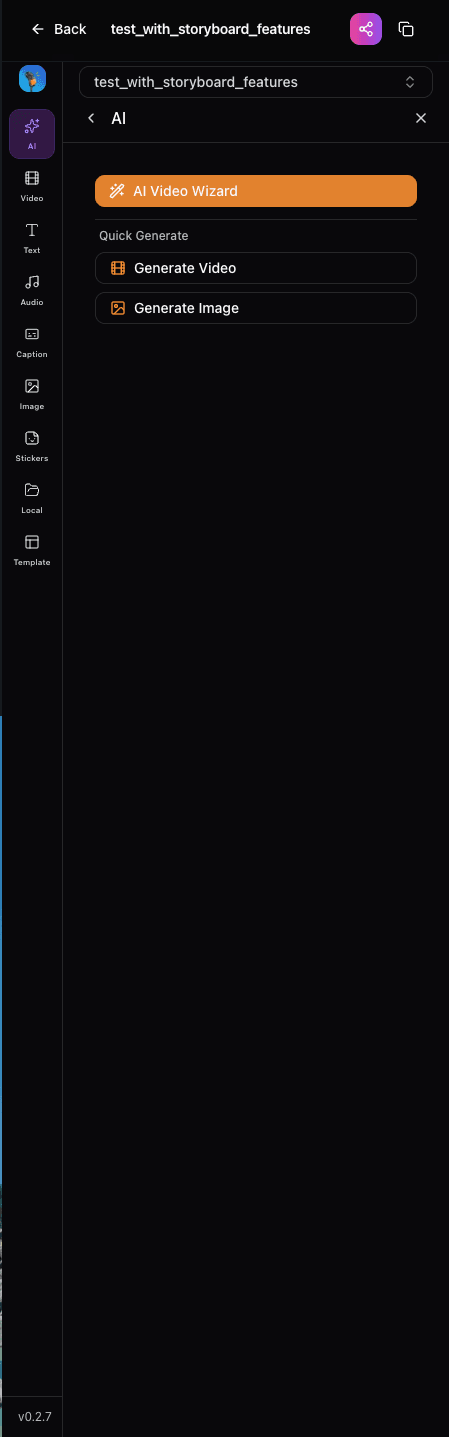
1. Open the AI Wizard
In the Video Editor, click the AI Wizard button in the sidebar.
2. Enter Your Topic
Describe what your video is about. The more detail you provide, the better the results.
3. Follow the Steps
The wizard guides you through Transcript → Storyboard → Assets → Timeline. Review and revise each step as needed.
4. Save to Timeline
When satisfied, click Save to Timeline to apply everything to the editor.
Step 1: Transcript
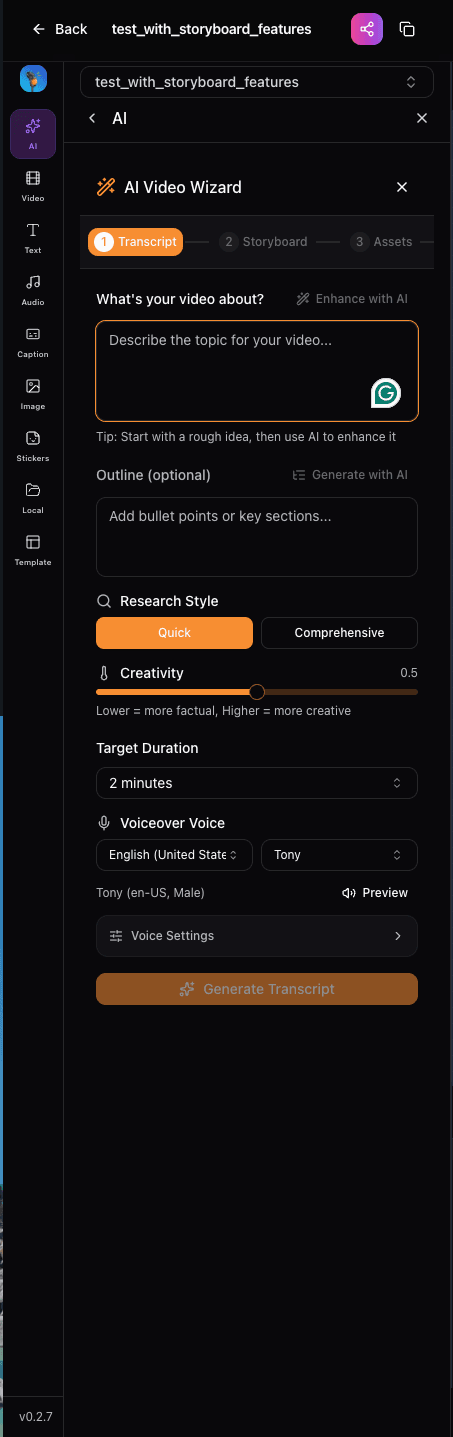
Enter your video topic and the AI will research it and generate a complete script.
Features
- Topic Input: Describe your video idea in natural language
- AI Enhancement: Click the sparkle icon to enhance your topic with AI suggestions
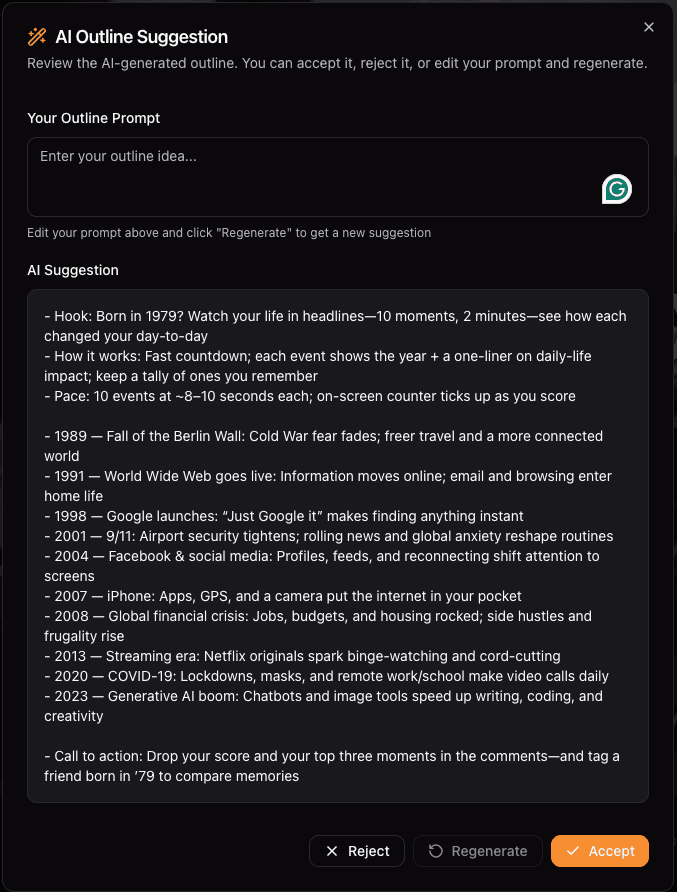
- Outline Generation: Auto-generate bullet points for your video structure
- Duration Control: Set your target video length (30 seconds to 30+ minutes)
- Research Style: Choose "Quick" for faster results or "Comprehensive" for deeper research
- Voice Selection: Pick your preferred voice for TTS narration
Generating the Transcript
Click Generate Transcript to start. The AI will:
- Research your topic using Perplexity AI (when enabled)
- Extract relevant images from research for later use
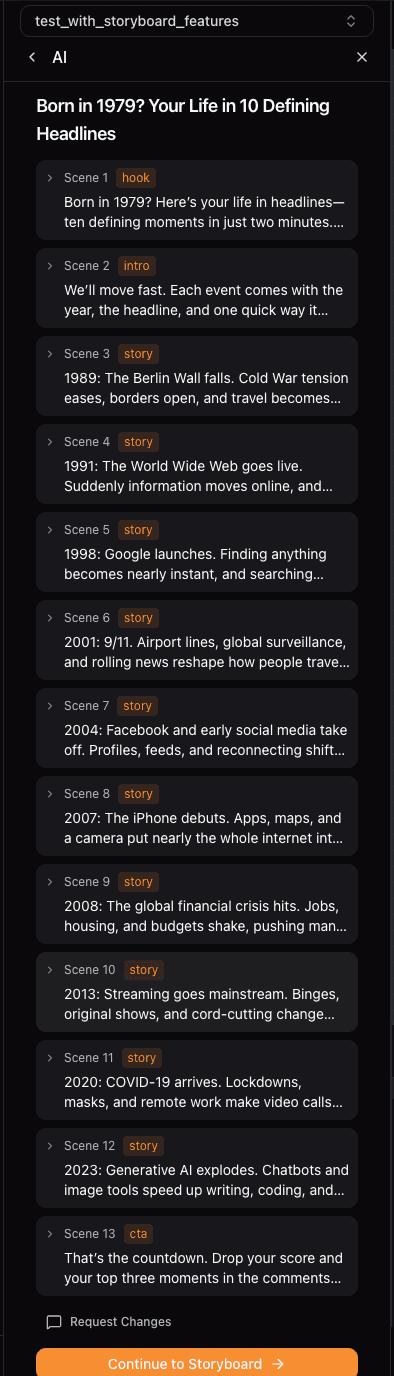
- Generate a structured transcript broken into scenes
- Add visual ideas for each scene
Step 2: Storyboard
The storyboard step runs two AI agents in parallel to plan your visuals and voiceover.
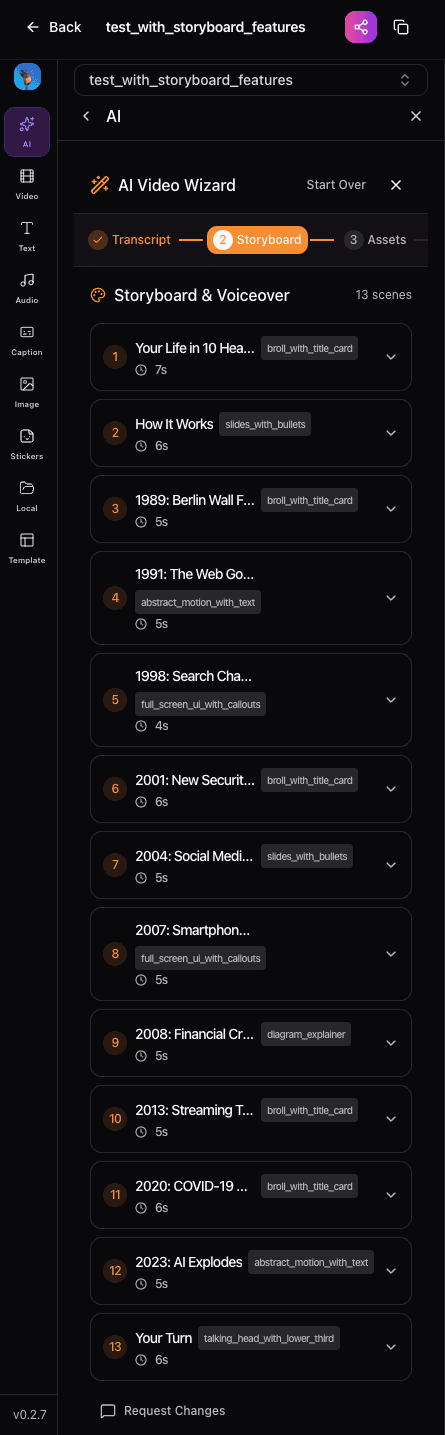
Visual Storyboard
- Scene layouts (talking head, slides, B-roll)
- Camera styles and shot types
- On-screen text (headlines, bullets)
- Image and video prompts
Voiceover Plan
- Text chunks optimized for TTS
- Voice selection per chunk
- Speaking rate and pitch
- Duration estimates
Step 3: Assets
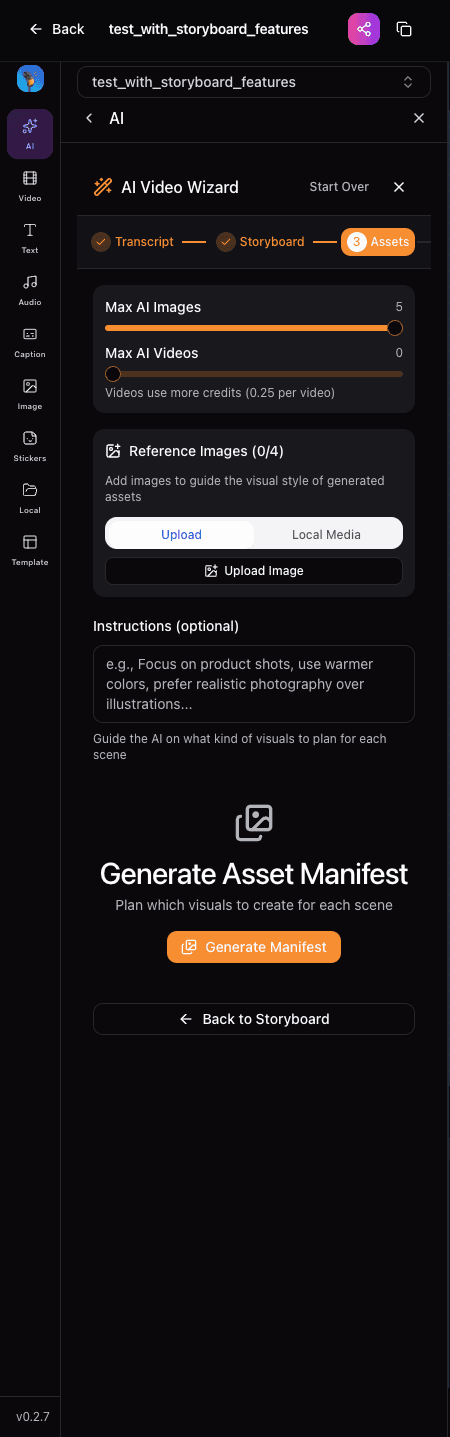
Generate AI images and videos for your scenes. Control costs with asset limits.
Features
- Reference Images: Upload images to guide AI generation style. Note: Images with faces, logos, or copyrighted content may be rejected by AI content filters.
- Research Images: Use Perplexity images directly or as style references
- Asset Limits: Control max images (default 5) and videos (default 2)
- Aspect Ratio: Choose 16:9 (landscape) or 9:16 (portrait/vertical)
Generating Assets
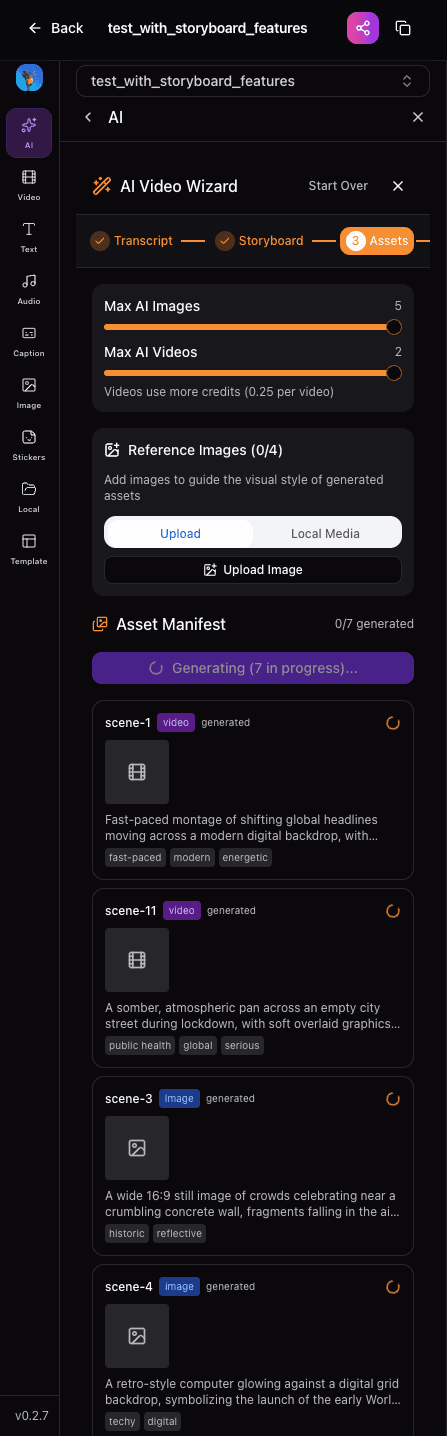
Click Generate Asset Manifest to create the plan, then generate individual assets:
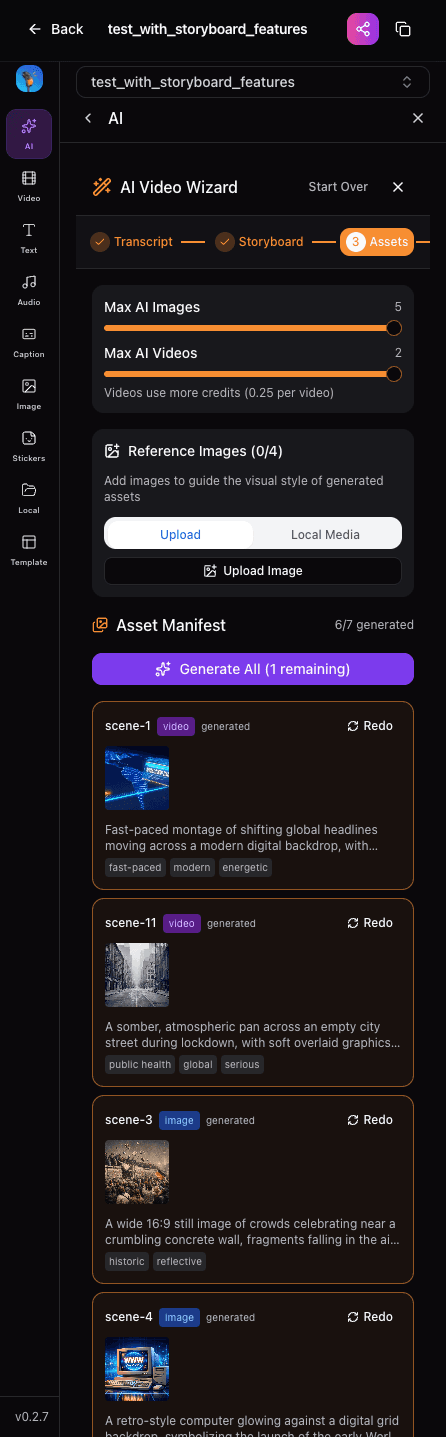
Once complete, you can preview all generated assets:
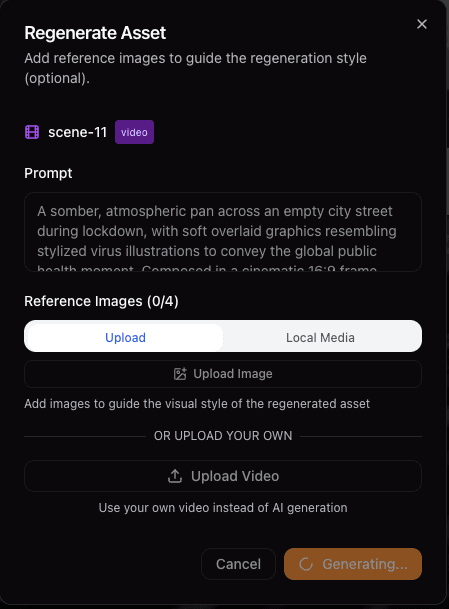
Regenerating Individual Assets
Don't like a specific asset? Click the regenerate button to create a new one:
Step 4: Timeline
The final step assembles everything into a complete video timeline.
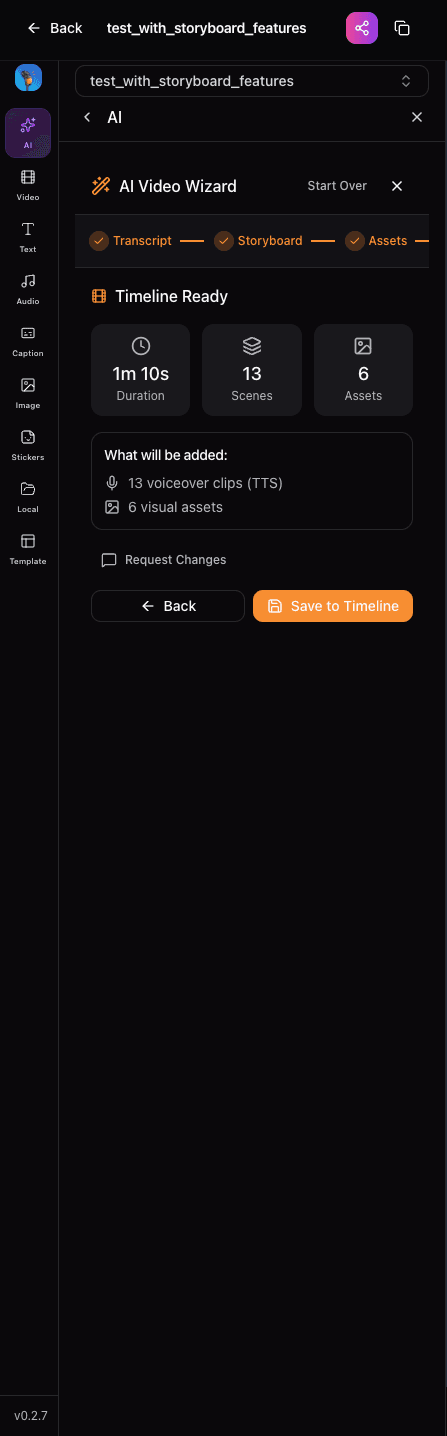
- Calculates precise timing based on voiceover duration
- Places audio clips on the narration track
- Positions visual assets on appropriate layers
- Adds text overlays and graphics
- Creates a ready-to-edit timeline in Remotion format
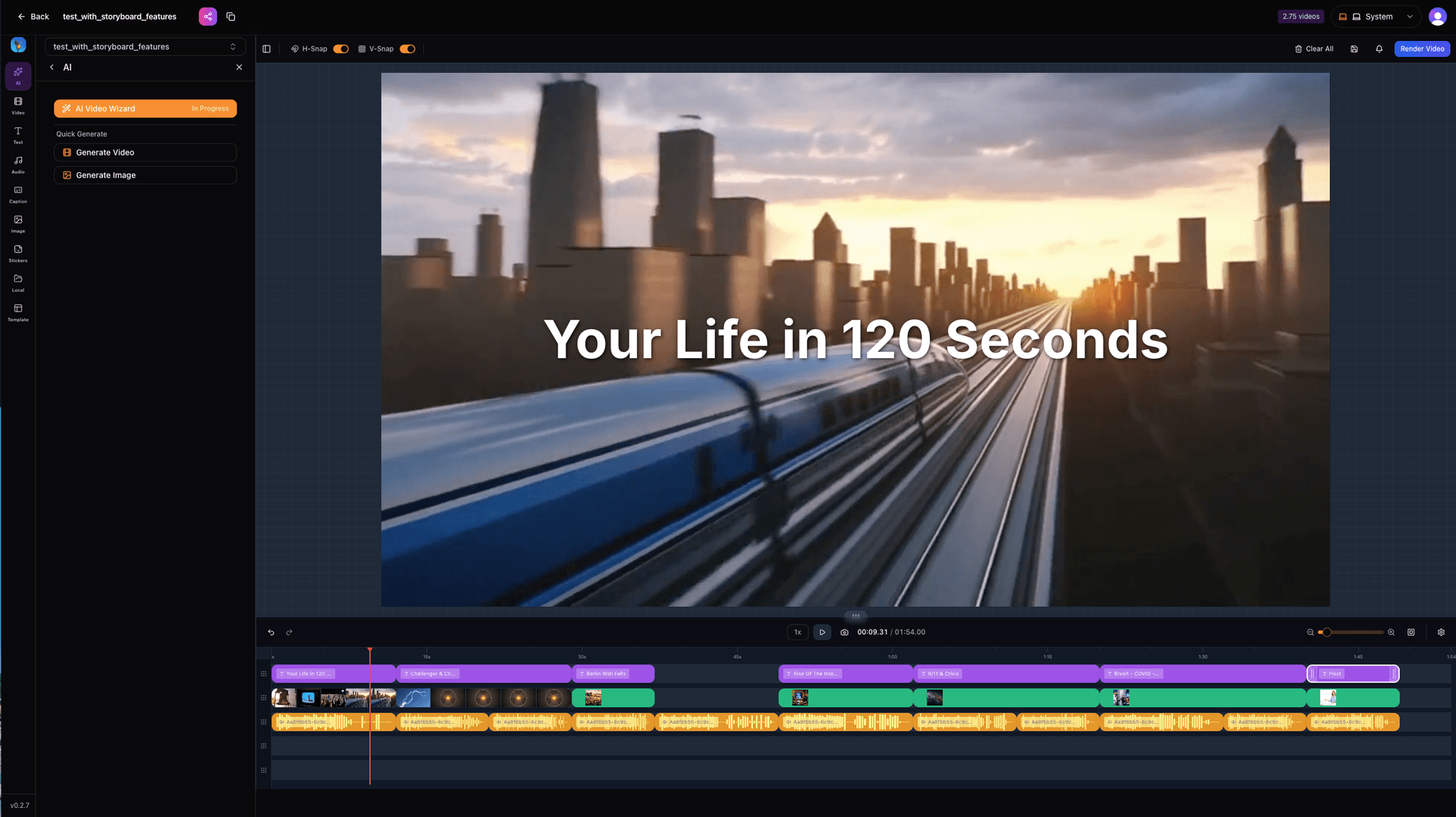
Save to Timeline
Click Save to Timeline to apply everything to the video editor:
Revision Workflow
Each step supports revisions. If you're not happy with the output:
How to Revise
- Review the generated output
- Enter feedback describing what you want changed
- Click regenerate - the AI incorporates your notes
- Repeat until satisfied
AI Models & Research
Perplexity Research
The transcript step can automatically research your topic using Perplexity AI:
- Quick Mode: Fast searches using the "sonar" model
- Comprehensive Mode: Deep research using "sonar-pro" for complex topics
- Image Extraction: Research images are captured and available in the Assets step
Asset Generation
- Images: Generated with DALL-E based on scene descriptions
- Videos: Created with Sora 2 for key scenes (limited to control costs)
- Voiceover: Azure Neural TTS with customizable voice, rate, and pitch
Cost Controls
The AI Wizard includes built-in cost controls to manage your usage:
Tip: Use Perplexity research images (free) instead of AI generation when they match your content needs.
Best Practices
Topic Input
- Be specific about your topic and goal
- Include target audience if relevant
- Mention duration preferences
- Specify style (educational, promotional, etc.)
Reference Images
- Upload images that show your desired visual style
- Add prompts to describe how to use each reference
- The AI will apply colors, composition, and aesthetic from references
- Note: Images with faces, logos, or copyrighted content may be rejected by AI content filters
Review Each Step
- Don't rush through - each step builds on the previous
- Use the revision feature to refine outputs
- Check transcript word count matches your duration goal
Troubleshooting
Transcript is too long/short
The AI targets 150 words per minute. If the output doesn't match your duration, use the revision feature with feedback like "Make it shorter" or "Expand on section X".
Assets not generating
Check your asset limits. If set to 0, no AI images/videos will be generated. Also ensure you have sufficient credits for asset generation.
Research not working
Research is skipped during revisions to save time. If you need fresh research, start a new transcript generation instead of revising.
Need More Help?
If you're experiencing issues or have questions not covered here, we're here to help.